All posts · Updated · 9 min read
Apps to Play With Friends While Chatting: Costs and Access
Find apps to play with friends while chatting, compare voice chat and free access, check iOS–Android cross-play, and learn how to invite friends to a match.

Cross-platform play is the make-or-break detail: an app works for your group only if friends on iOS and Android can join the same game.
When choosing apps to play with friends while chatting, consider three things: whether the game is free to download, whether paid extras are optional, and whether voice chat is built in. Free access doesn’t guarantee the same features across every app, so check platform support and how invitations work, too.
This guide explains what to look for in free and paid access, how cross-platform matches work when supported, and how to invite a friend to a live or anytime challenge. You can then choose what suits your group, from a voice-enabled live duel to an anytime score challenge, without treating optional purchases as a requirement to play.
Key Takeaways
- Match the game format to your group: pick casual multiplayer for a relaxed session or a head-to-head challenge for direct competition.
- Before inviting friends on different phones, confirm the game supports cross-platform play between iOS and Android.
- Use the invite options the game provides, such as a code, link, contacts, or social account, and check how each route works.
- Look for games with optional Voice chat and fair match rules.
Table of Contents
- Social games for playing with friends
- Cross-platform play between iOS and Android
- Inviting friends through codes, links, contacts, or social accounts
- What are the best apps to play games with friends while voice chatting?
- Live duels and matches with friends
- How to delete your account
- Play friend duels with Combo Rival
Social games for playing with friends
The best apps to play with friends while chatting suit the way your group gets together. Trivia works well for a quick catch-up, while mobile puzzles let friends compare scores between calls. Check the game listing to see whether it offers voice chat. Consider which game features fit your group.
When choosing apps to play with friends while chatting, look for a game that clearly lists built-in voice chat. Some titles offer it only in certain modes; others require a separate call. Player limits vary by game and room, so check the lobby details before inviting everyone. A private word-game room, for example, may have a different capacity from a guild event.
For children, set clear boundaries around finding friends and using voice chat. Choose private rooms and player controls where available. Set the room to friends-only, limit invitations to people your child knows, and show them how to mute or block unwanted contact if those controls are available. Agree on who can join before starting a group chat, so the session stays focused on familiar players.
Cross-platform play between iOS and Android
An iPhone and an Android phone can join the same multiplayer match only if the game supports cross-platform play. Seeing the same title in Apple’s App Store and Google Play doesn’t prove that it does. Some games separate players by device; others connect them through shared accounts or matchmaking. Check the game listing and settings for explicit iOS-to-Android support before choosing.
Compare the exact game name on both phones. Confirm that both players can install the same game and access the same multiplayer mode. If one friend sees a different edition or a mode is missing, you may not be able to meet in one match. Look in the game for cross-play details, friend search, or a shared invite option. Ask a friend on the other platform to test it before planning a longer session.
Cross-platform play doesn’t guarantee that every feature works across devices. Check whether friends on iOS and Android can join the same room, use the same match type, and communicate through in-game chat. If voice chat isn’t shared, use a separate group call while playing. Test the setup with one friend before inviting the rest of your group.
Inviting friends through codes, links, contacts, or social accounts
Start in the game lobby and choose “Invite friends” or “Create room.” If the game provides a code, send it in your group chat and ask friends to enter it in the multiplayer menu. A room code lets everyone join the same match without searching for player names. Keep the code within your group if you want the room to stay private.
An invite link may take a friend directly to a room or to the game’s download page. Tap “Share,” choose a messaging app such as WhatsApp, and send the link. If it opens the app store, ask your friend to install the game, return to your message, and tap the link again. The exact steps vary by game.
Inviting friends through contacts or social accounts may be quicker, but can involve syncing contacts or linking an account. Read the permission prompt before granting access. If you’d rather not link accounts, use a room code or share link. For an iPhone-to-Android group, ask one friend on each device to join first. Once both are in the same room, invite the rest of the group.
What are the best apps to play games with friends while voice chatting?
The best choice depends on how your group likes to talk. Choose a game with built-in voice chat if you want to speak without switching apps. A separate group call works for other apps to play with friends while chatting, too, especially for casual word games or puzzles. Check that the call and game can run together on each phone, then test the sound before you start.
For a head-to-head block puzzle, look for clear scoring and a fair setup. When both players receive a Shared piece sequence, decisions determine who earns the higher combo score. In a cooperative strategy game, quick callouts can help coordinate moves. If your group prefers planning over constant conversation, choose a quieter game. The right format keeps the match and chat in sync.
Before playing, open the audio settings. Check whether Voice chat starts muted, how to mute another player, and whether you can leave voice while staying in the match. Those controls help in a private room or public lobby. Apps to play with friends while chatting should let your group manage communication. Set your audio, invite your crew, and get into the game.
Live duels and matches with friends
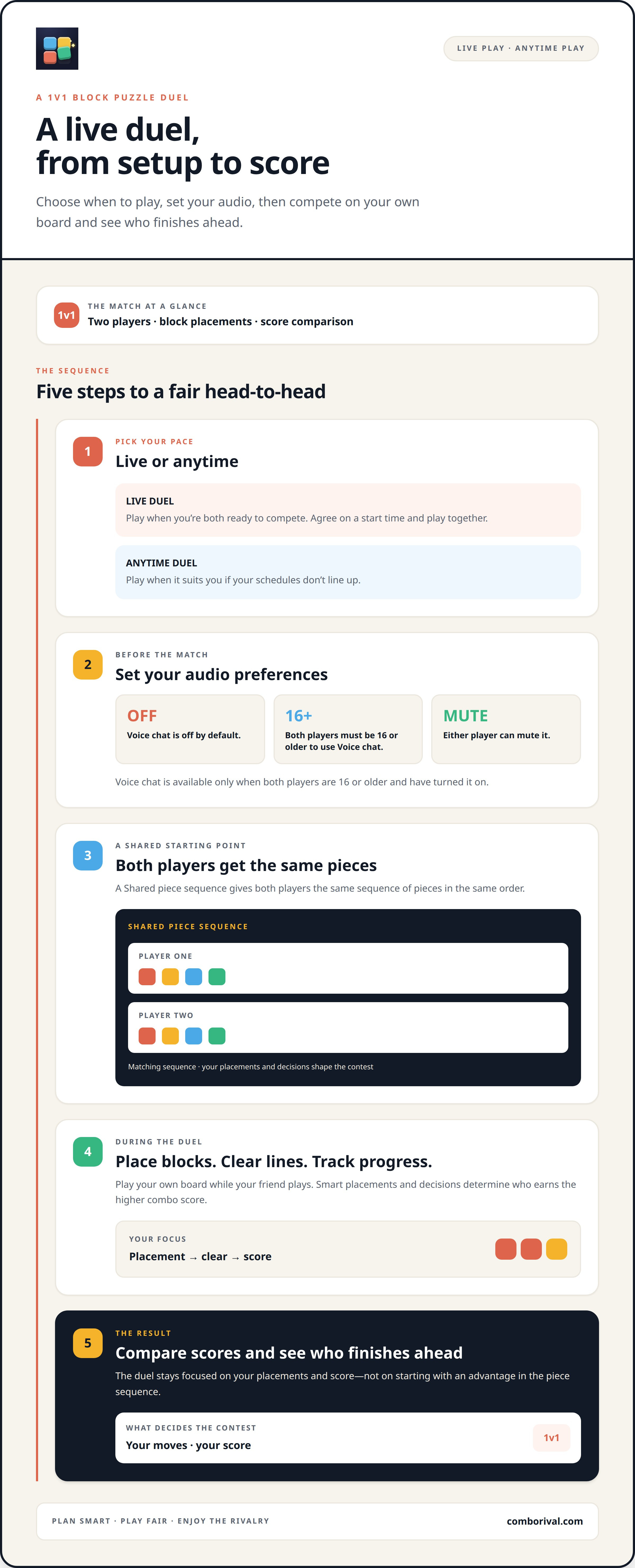
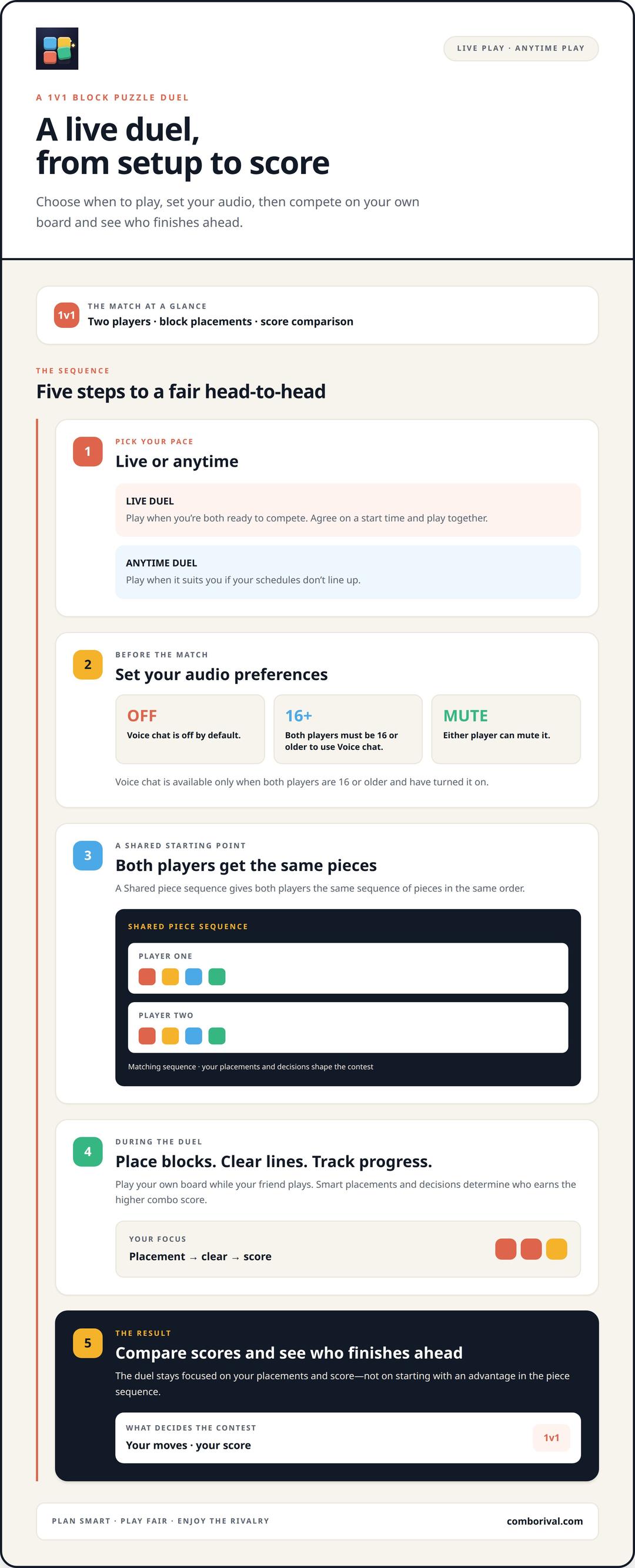
Combo Rival lets you challenge a friend in a live or anytime 1v1 block puzzle duel. Choose live play when you’re both ready to compete. Pick an anytime match when your schedules don’t line up. Both formats keep the contest focused on your placements and score, not a shared start time.
During a live match, place blocks, clear lines, and track your progress while your friend plays. Voice chat is available only when both players are 16 or older and have turned it on, according to the app store. It’s off by default, and either player can mute it. Set your audio preferences before the match, then focus on your next move.
Want a direct rivalry without coordinating schedules? Choose an anytime duel and play when it suits you. For a live session, agree on a start time and keep the board in view while you chat. Call out a risky placement or celebrate a strong score. The format is simple: play your own board, make smart moves, and see who finishes ahead.
How to delete your account
Uninstalling a game removes it from your phone but doesn’t submit an account deletion request. Start in the game’s settings and open “Account,” “Privacy,” or “Help.” Look for “Delete account” and follow the confirmation steps. If there’s no in-app option, use the game’s listed support channel to request account deletion.
Before confirming, read the prompt to understand what happens to saved progress, profile details, and friend connections. Save any information you want to keep, then confirm only when you’re ready to lose access. If you sign in through Apple, Google, or a social account, deleting your game profile and disconnecting that login are separate steps. Review the connected account’s settings after submitting your request.
Keep any confirmation message or request reference until the process is complete, in case you need to follow up. Delete the profile first, then remove the app from your device.
Play friend duels with Combo Rival
Combo Rival: Block Puzzle is a free mobile game built for friendly block-puzzle competition. It offers live and anytime 1v1 friend duels, so you can match your play style to the moment. If you’re both ready for a shared session, choose a live round. If your schedules differ, an anytime duel lets each player take a turn later. Voice chat is an option for players who want conversation alongside the match.
Looking for a puzzle beyond head-to-head play? Combo Rival’s Daily Puzzle gives you a daily board to solve at your own pace. The Season Pass has free and premium tracks, so you can enjoy the basic game without paying for access. The premium track is optional, not a requirement for playing or challenging a friend.
Choose a duel for direct competition, then switch to the Daily Puzzle when you’d rather test your own planning. Decide separately whether the premium track suits you; it doesn’t determine whether you can join a friend’s match. Pick the mode that fits your session, and keep purchases optional.
Contact Combo Rival if you have a question about playing with friends.
Frequently Asked Questions
What are the best free apps for playing games with friends remotely?
Choose a game based on the kind of session your group enjoys. Puzzle fans may prefer a score challenge, while others may want trivia or word rounds. Before deciding, open each game’s mode menu and look for friend play, shared rooms, or private matches. This helps you avoid downloading a title that offers social profiles but no way to play together.
What should you check before choosing a social gaming app?
Check which game modes the app offers and whether they fit the way your group wants to play. Look for options such as friend play, shared rooms, or private matches. If you want to play with people using different devices, check that the game supports those devices. Review the game’s instructions so you know how to invite friends and start a session.
How do you invite friends and start a private game in popular social gaming apps?
Have the host open a private room and wait in the lobby while friends join. Before starting, confirm that the intended players are there and nobody has entered a public match by mistake. If someone can’t join, return to the lobby and resend the game invitation. Start once everyone in your group is ready.
Which online multiplayer games support both iPhone and Android?
Choose a game that explicitly supports cross-platform play between iOS and Android, and confirm that both players can access the same multiplayer mode.